Export and import dashboards
For process mining analysts, dashboards are typically built and configured around specific event logs, KPIs, and metrics. When migrating dashboard configurations across different environments, such as moving from a staging/testing space to production, or applying standard dashboard designs to different process logs, recreating widgets and metric mappings manually can be time-consuming.
To tackle this use case, Apromore enables users to export existing dashboards as structured templates and import them into other environments or workspaces, automatically mapping and instantiating the associated KPIs, metrics, shortcuts, and widgets.
Note
Dashboard items such as Violations and Compliance Center items are not recreated automatically and must be manually added to the dashboard.
To export a dashboard template, open the dashboard. At the top left of the window, click the download icon and select Template (.json).
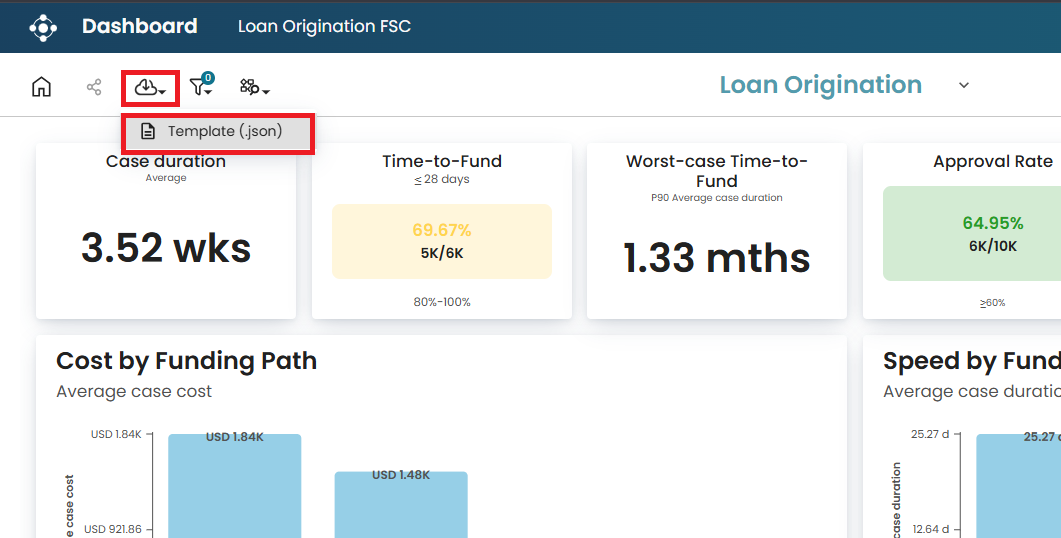
A .json template of the dashboard will be downloaded to your machine.
Note
The log for both the exported and imported dashboard must have the same schema to map appropriately. If the log is downloaded from the Apromore workspace, check the column names during import to ensure they match before importing the log. Column names containing spaces (e.g., “Case Outcome”) are typically renamed with underscores (e.g., “Case_Outcome”) when imported to Apromore; ensure you rename the column during file upload so that the dashboard maps properly.
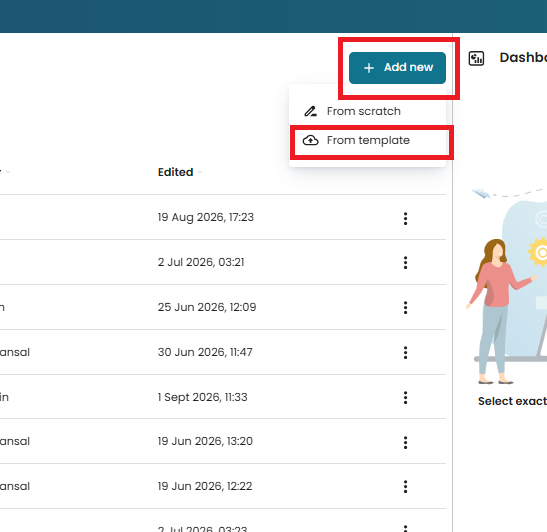
- To import a dashboard template, open the Dashboards page in Portal and click Add New. Select the From template option.
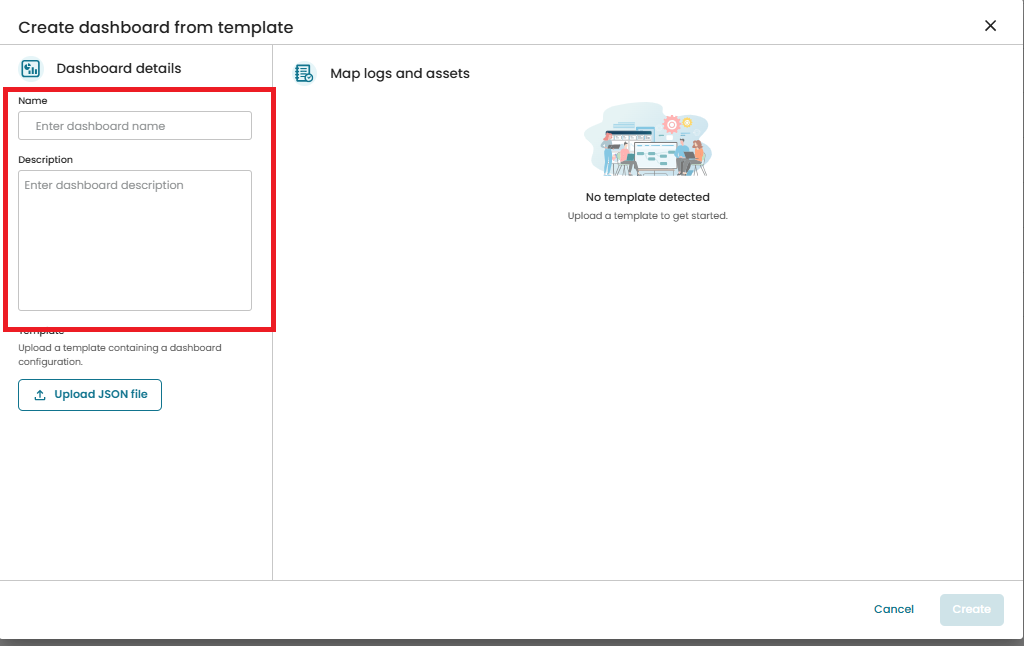
- Fill in the name and description of the dashboard.
- Upload a .json dashboard template.
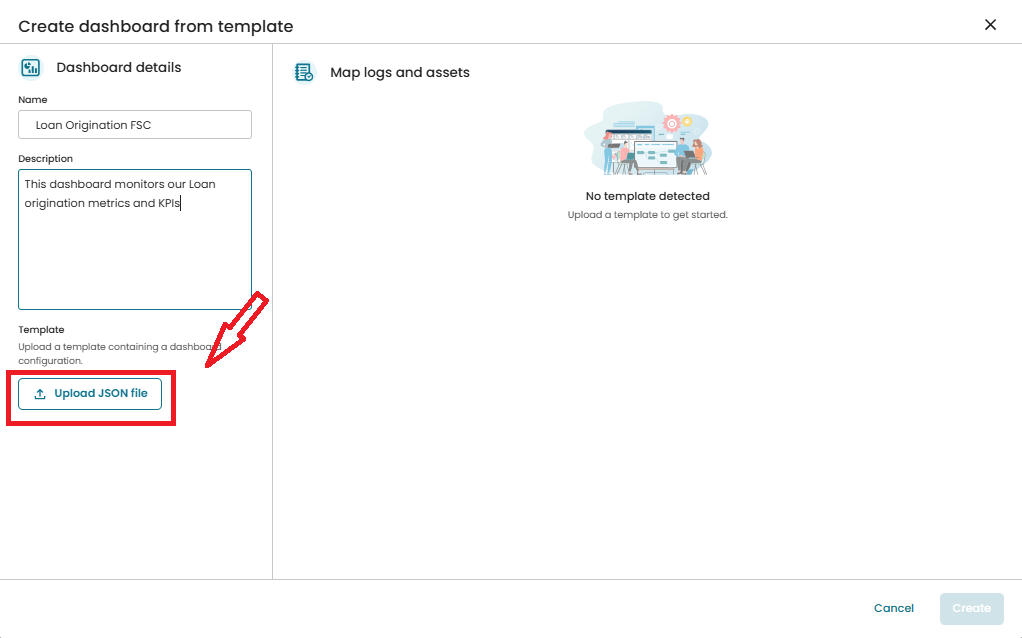
Apromore populates the dashboard details from the template. Next, we map the template’s logs and assets to the current dashboard. We specifically do the following:
Map the log from the workspace. A dashboard may refer to one or more event logs. When a dashboard template is imported, we need to indicate which event logs should be associated with the new dashboard. Therefore, we need to map each event log reference in the dashboard template to a concrete event log in the workspace.
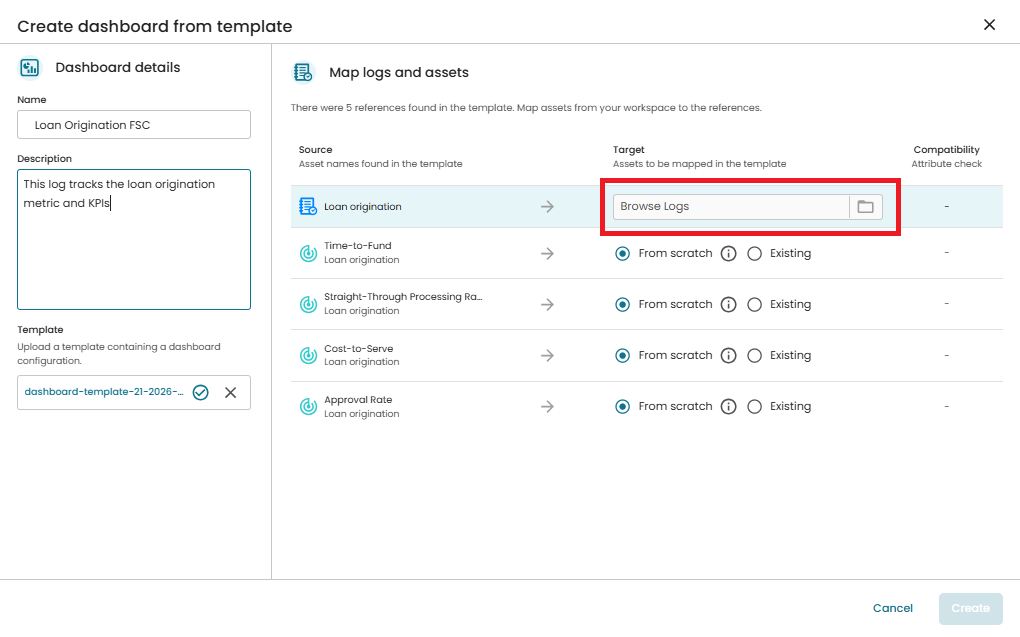
Select the KPIs and Metrics you wish to recreate or remap. A dashboard template may refer to one or more KPIs and metrics. When importing the template, we need to specify whether each KPI and metric should be recreated (in which case new KPIs/metrics will be created) or remapped to existing ones in the KPIs & Metrics center.
Map the Shortcuts, if applicable. A dashboard template may contain one or more shortcuts to Apromore assets. For each shortcut, we need to indicate the specific Apromore asset it should point to.
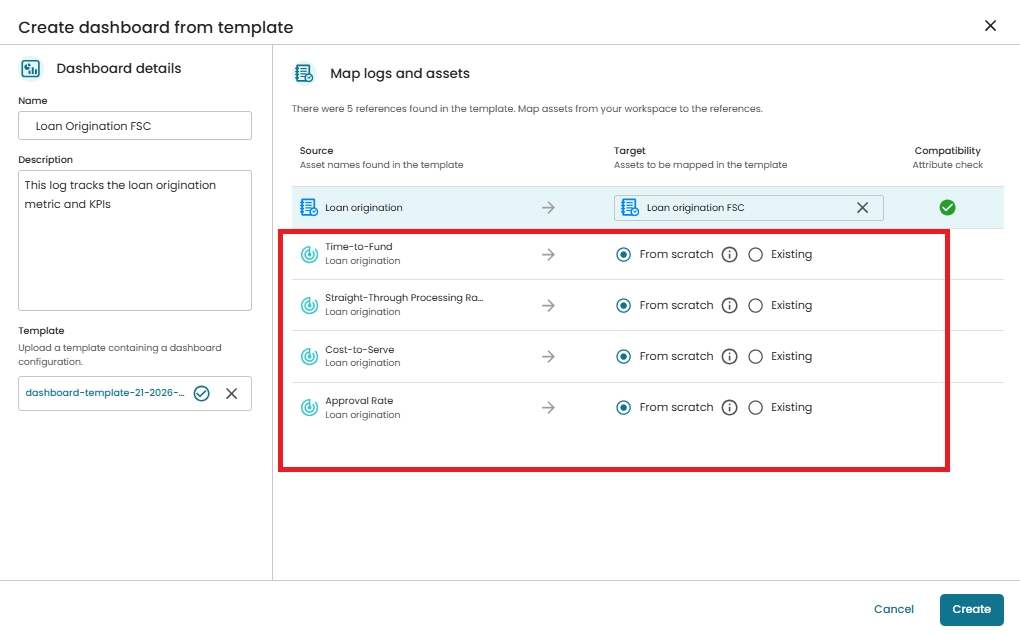
Once all event logs, KPIs, metrics, and shortcuts in the dashboard template have been mapped, click Create to instantiate the new dashboard from the template.
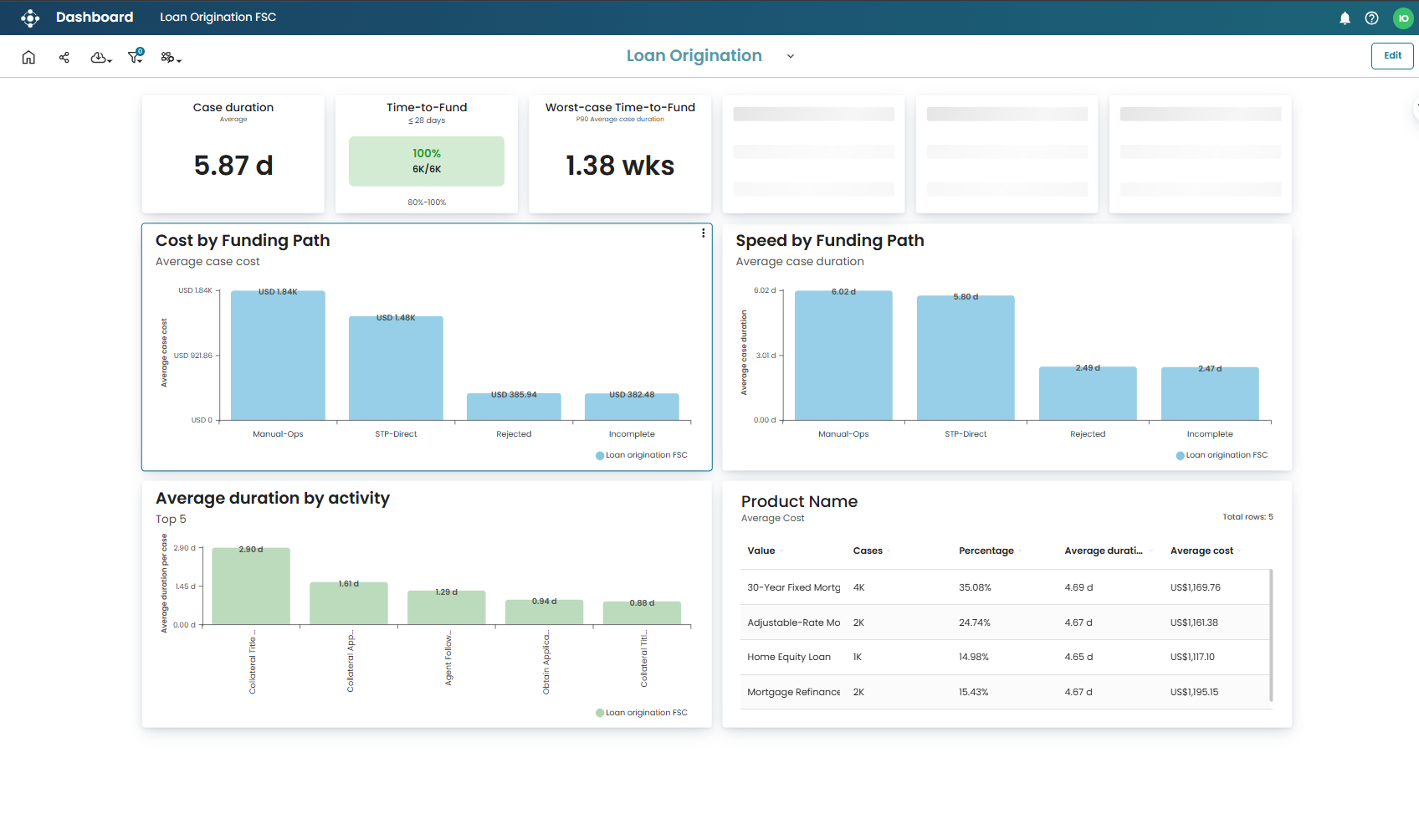
The dashboard will be recreated. If any required attributes are missing, the associated widgets will not be created.