Add a shortcut or link widget
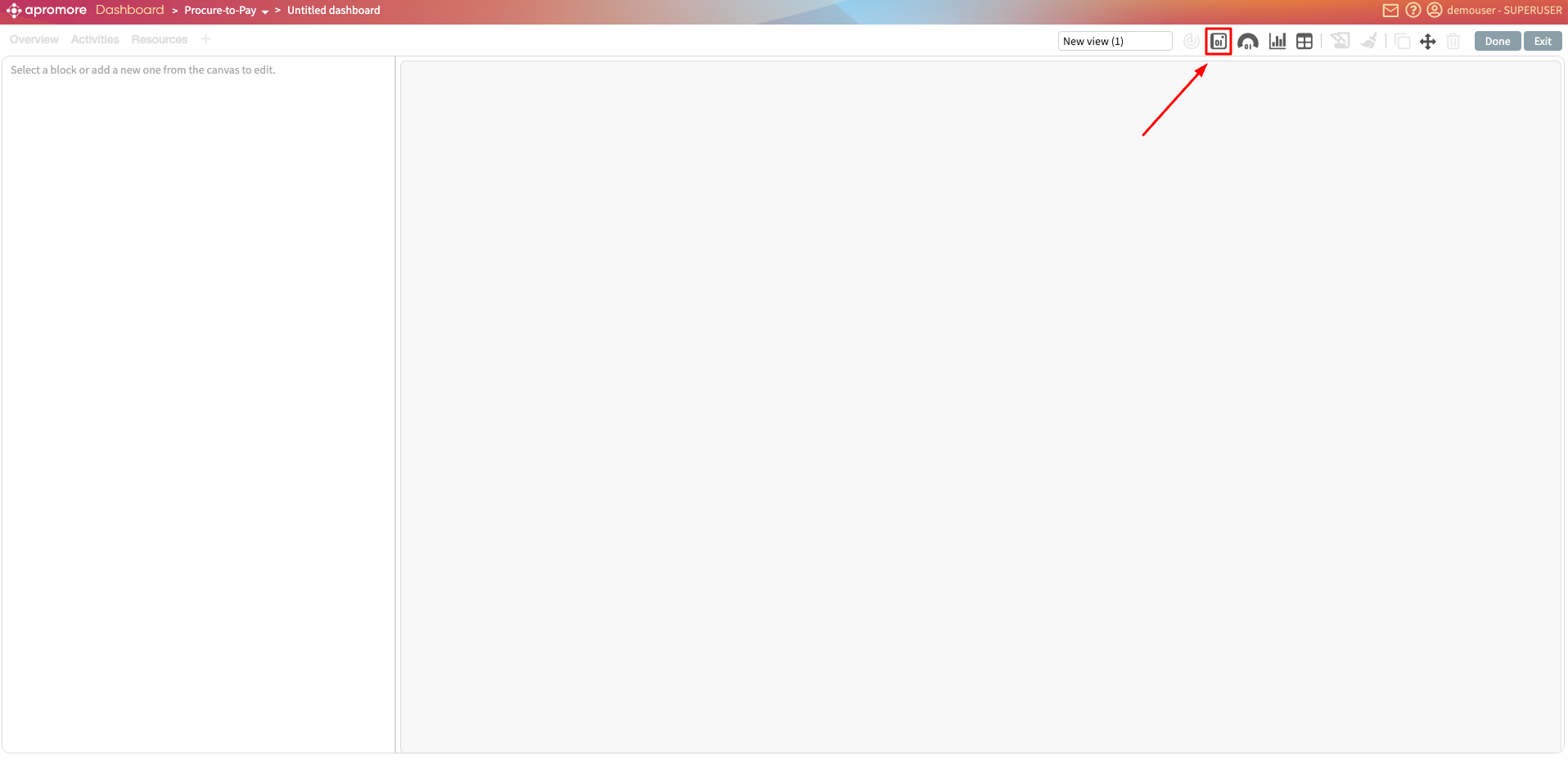
Shortcuts allow us to link dashboards, folders, BPMN models, and process logs in the new dashboard. We can also add links to external resources in the dashboard. To add a shortcut or link click Add widget > Shortcut/Link.
Add an internal shortcut
To add an internal shortcut, stay in the Internal Shortcut tab.
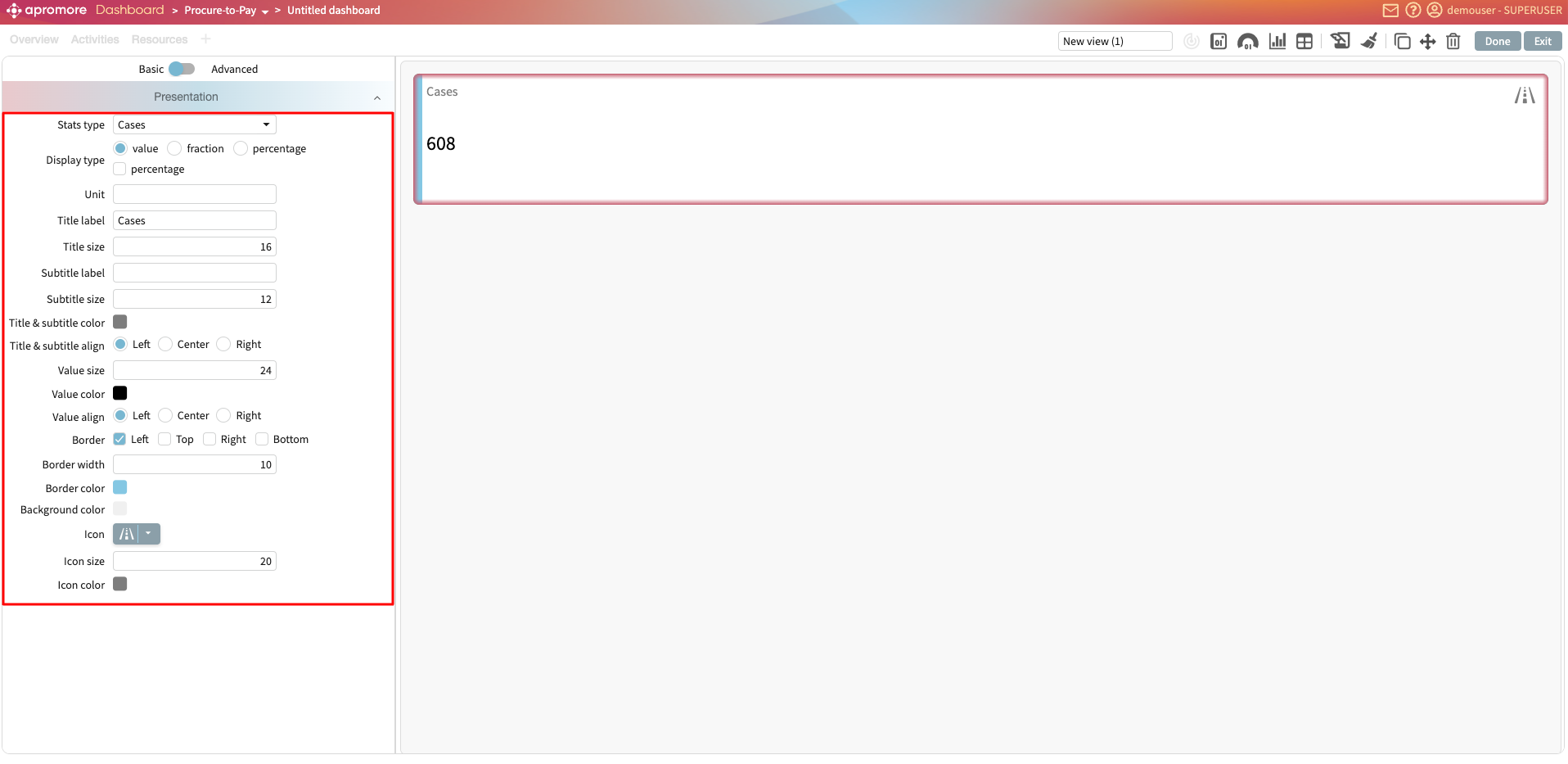
Select the tool or data we wish to add as a shortcut. Say we want to quickly navigate to a folder, select Folder. Click Browse Folders and select the folder to add.
We may add a description if necessary.
We can also add the following as a shortcut:
Other new dashboards
Classic dashboards
BPMN models
Process logs
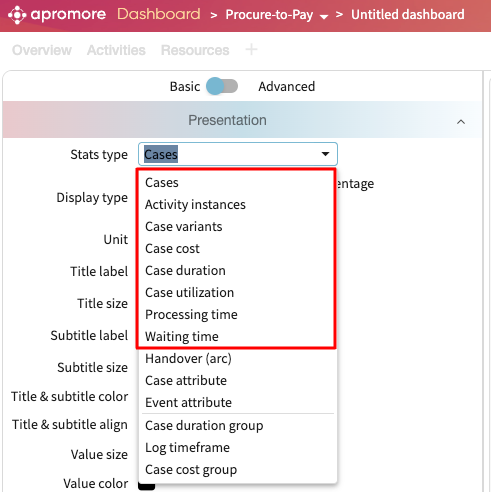
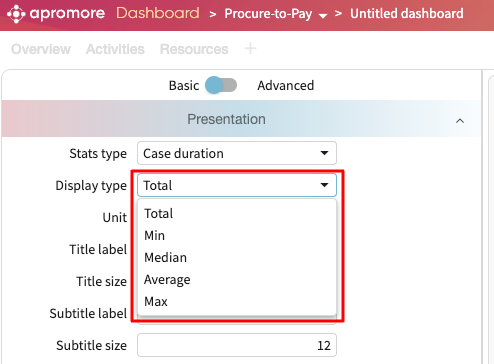
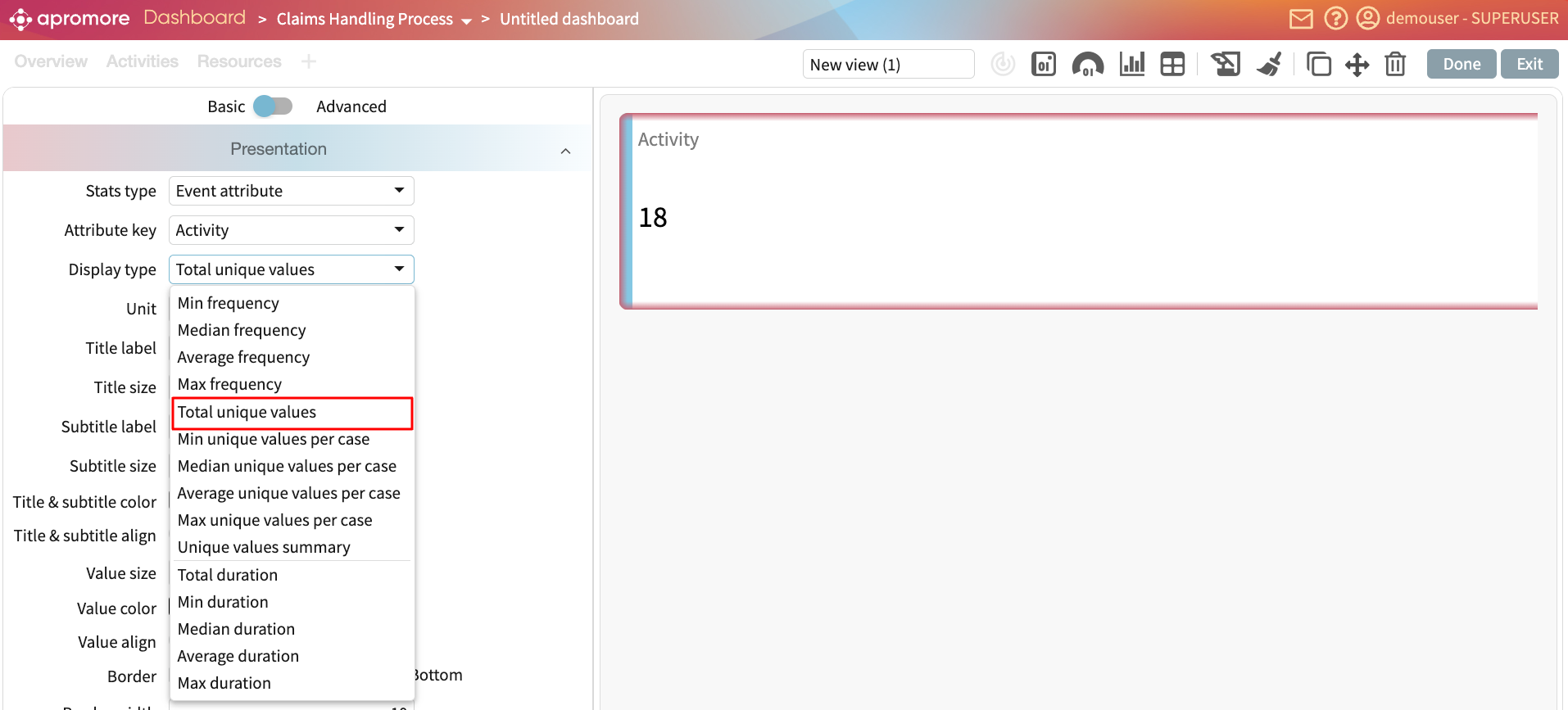
Click the Tool and Data dropdown to specify the type of internal shortcut to display.
Add an external link
Similarly, we can add external links. To add an external link, go to External link.
Enter the URL, title, and optional description.
Add a Process Discoverer view
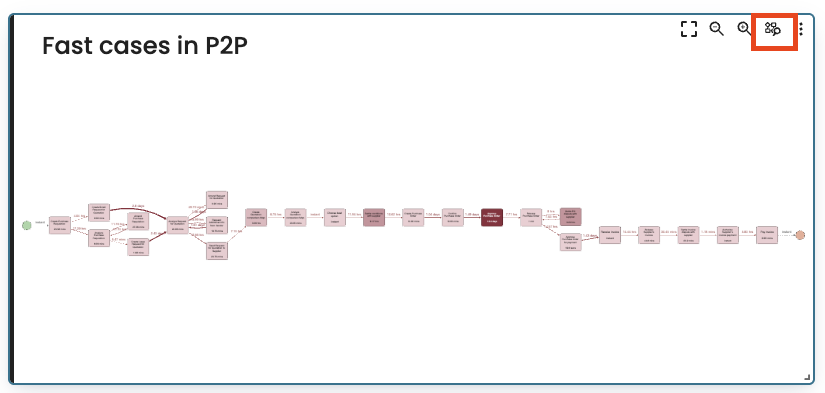
As process owners, we often manage multiple processes and need to monitor how they evolve over time without leaving the dashboard. Imagine we are responsible for a Procure-to-Pay process and we have created a Process Discoverer view filtered to show only cases with fast cases. We may want to check whether what nodes cause a bottleneck, without navigating away to Process Discoverer each time.
We can embed a saved Process Discoverer view directly into the dashboard as a shortcut.
To add a Process Discoverer view to the dashboard, click Add new > Shortcut/Link.
In the Tool and data dropdown, select Process discoverer
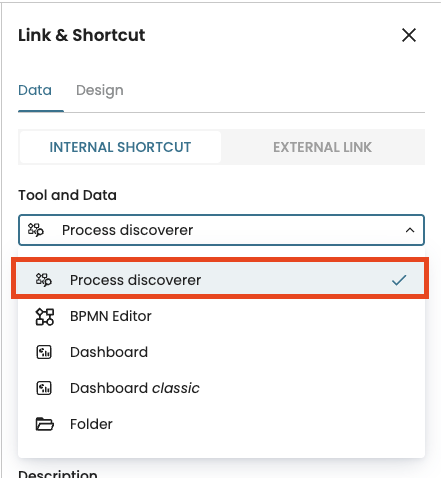 .
.
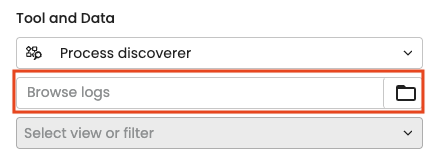
Select the event log that contains the saved view.
Select the saved view.
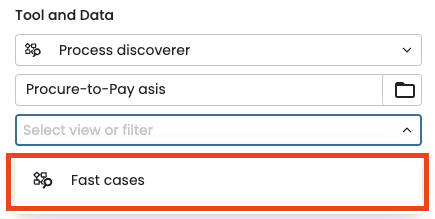
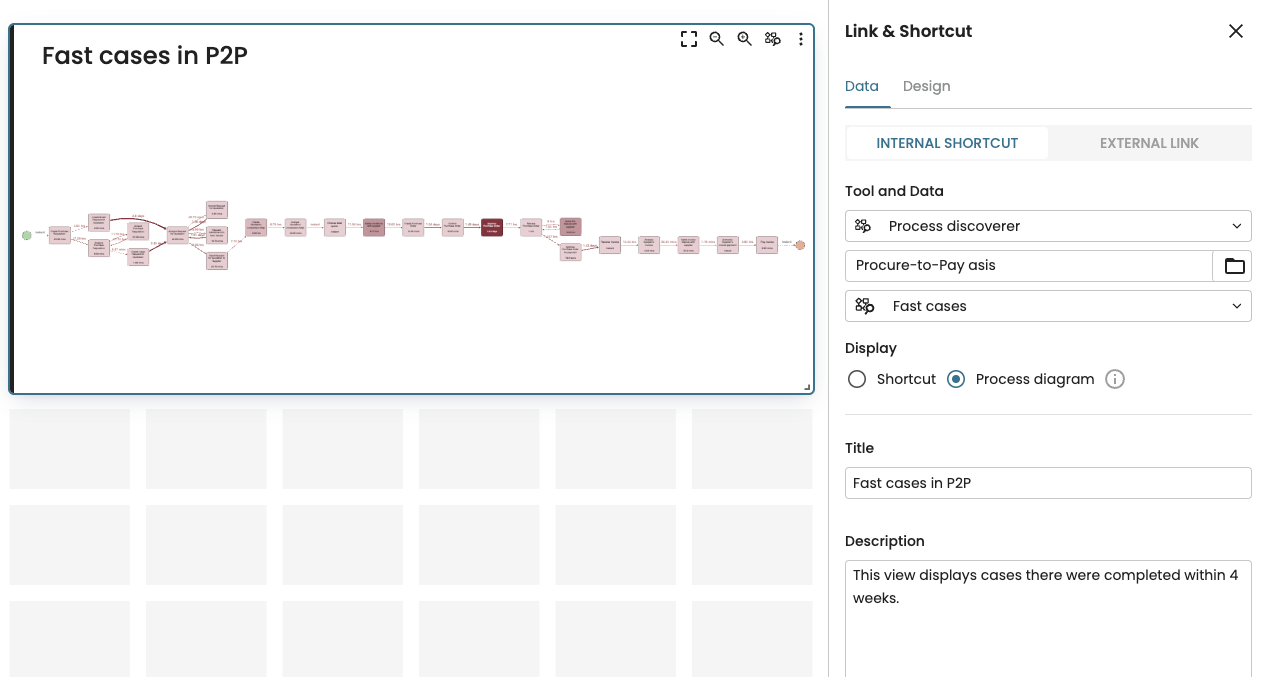
We can either display it as a Shortcut or Process diagram.
Shortcut: Displays a clickable Discover process icon. When we click the tile, it navigates to the view in Process Discoverer.
Process diagram: Displays the full process map directly within the dashboard.
To display as a shortcut, select Shortcut.
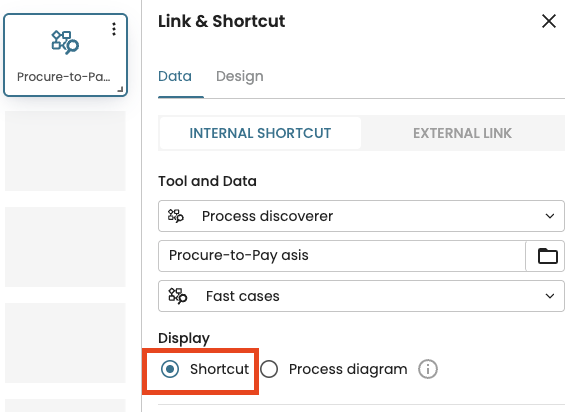
To display the full process map, click Process diagram.
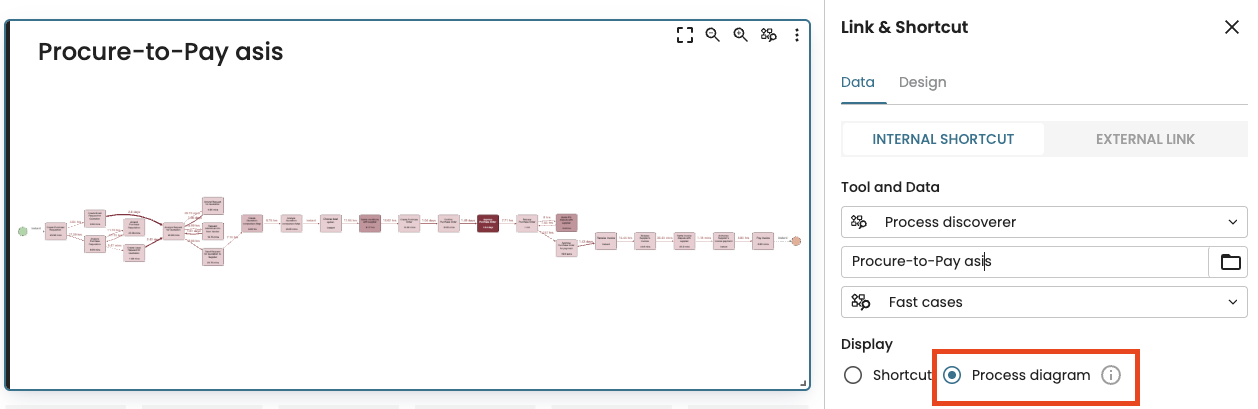
We can change the title and description of the widget.
In the widget, we can zoom in and out to inspect specific parts of the map.
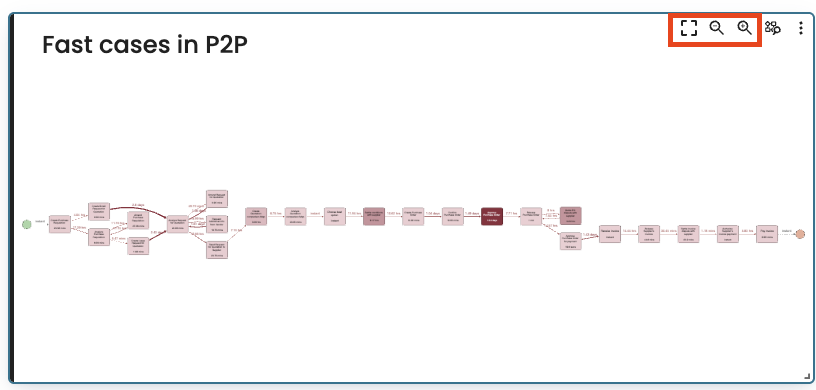
We can also click the Discover process icon to open the full view in Process Discoverer.