Add quick filters to new dashboards
Dashboards often include multiple widgets that visualize data from one log. When analyzing results, we may need to focus on a specific subset of cases. For example, in a claims management dashboard, we might focus only on claims submitted through a specific channel rather than the entire process.
To make it easier to view the filtered results in the dashboard, we can now apply Quick Filters directly in view mode. A quick filter can be applied to any data source used in a dashboard. When a quick filter is applied to a data source, all widgets that use this data source are updated with this filter.
To apply a quick filter, open a Dashboard in View Mode. Click the quick filters icon.
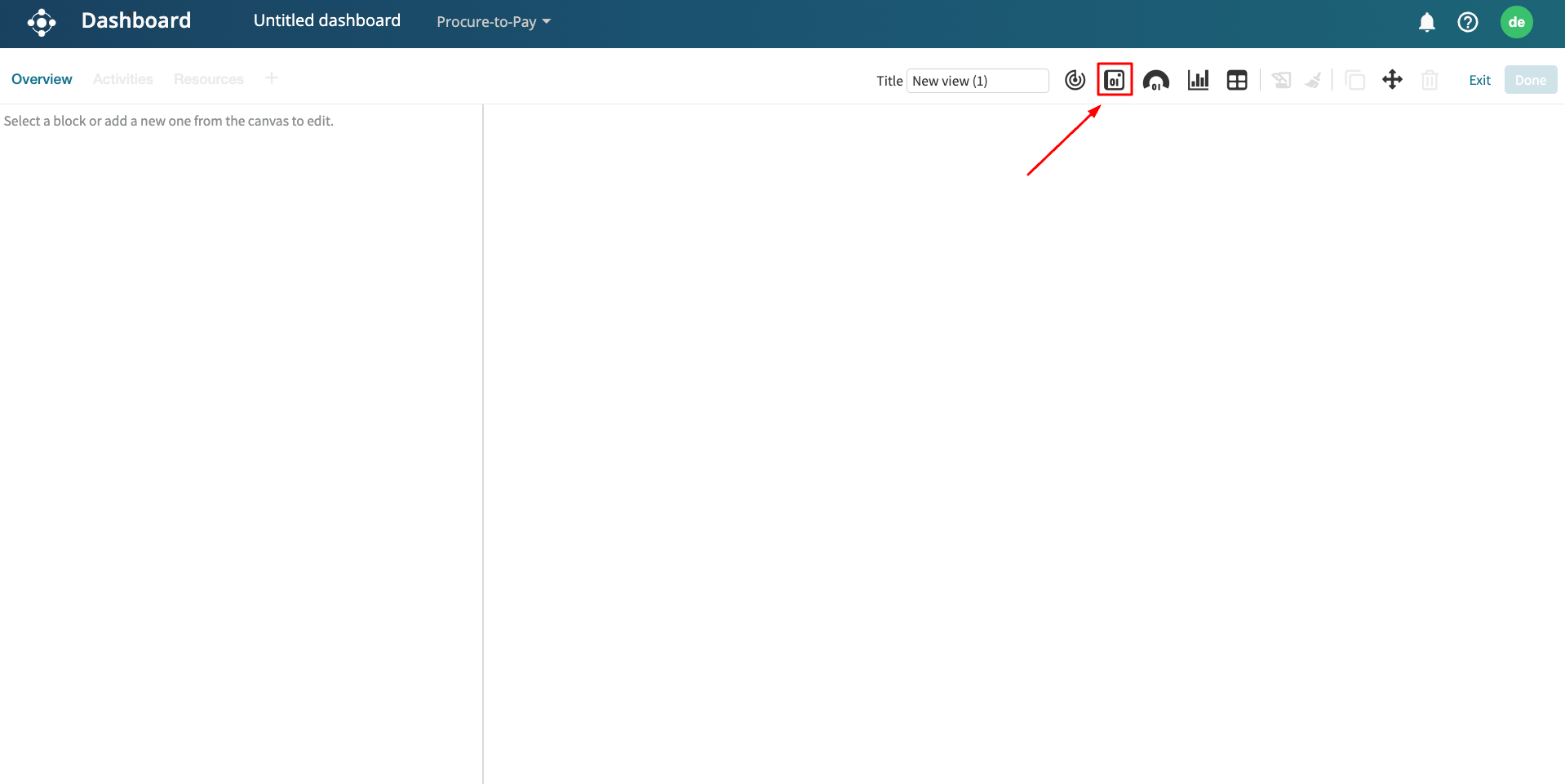
If multiple logs are used as data sources, select the Log whose widgets we want to filter.
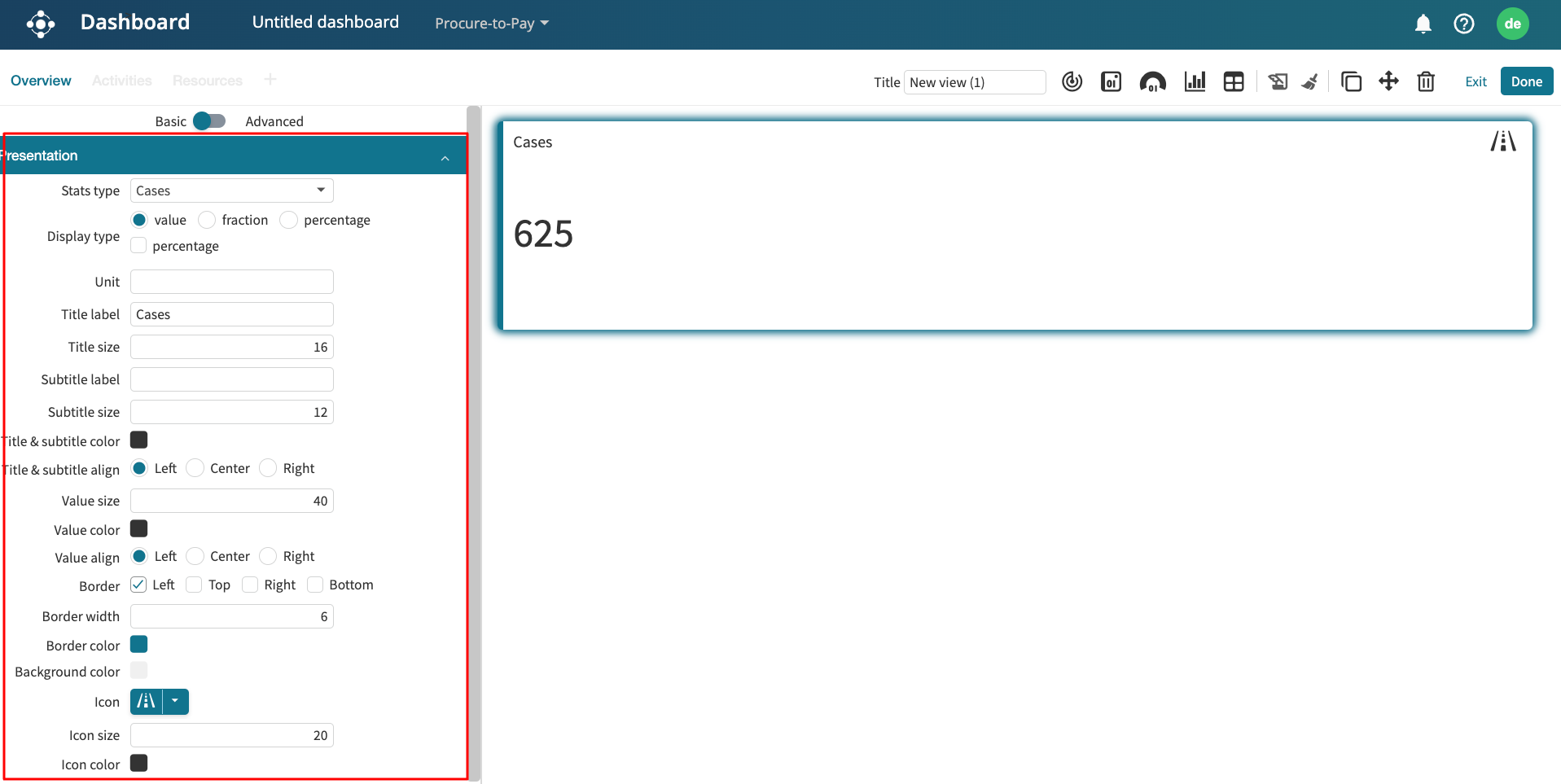
We see the case attributes of the log. Click any dropdown to retain or remove cases that satisfy an attribute value. For instance, in the claims management log, we can retain all cases that came through an online channel.
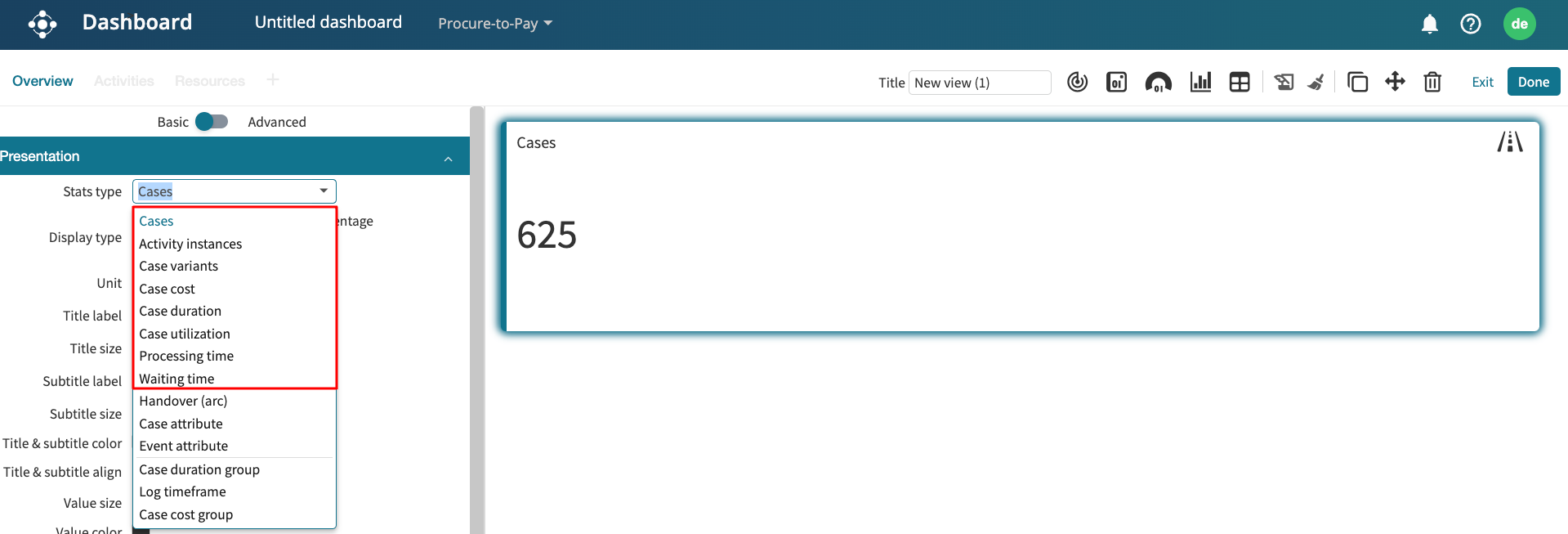
Click Apply. Widgets using the claims management log as a data source will update to reflect the applied filter. We can identify these widgets by the quick filter icon displayed on the top-right corner of the widgets.
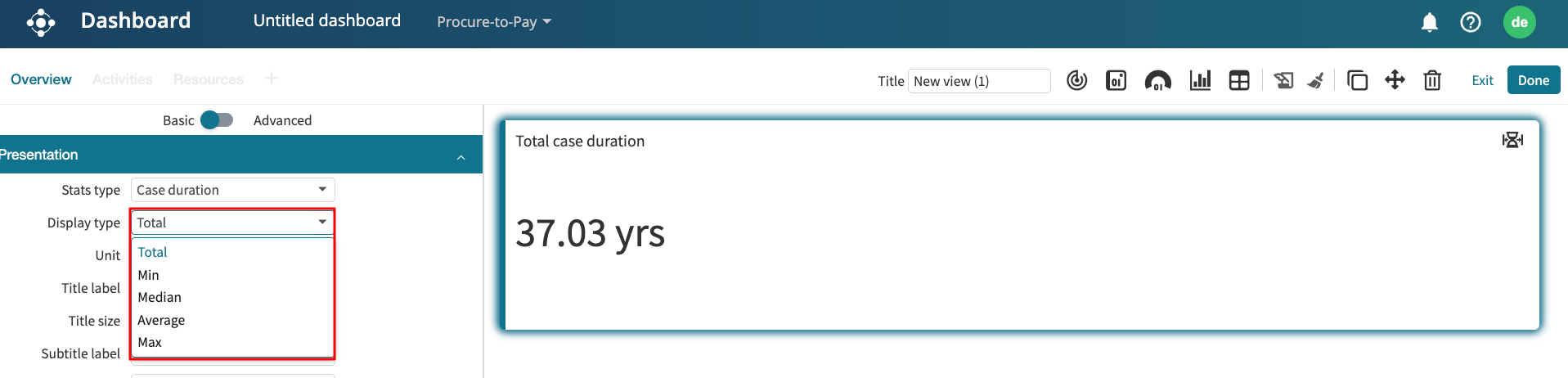
We can remove an applied filter by clicking the quick filter icon on a widget and clicking the undo button on the attribute where the filter was applied.
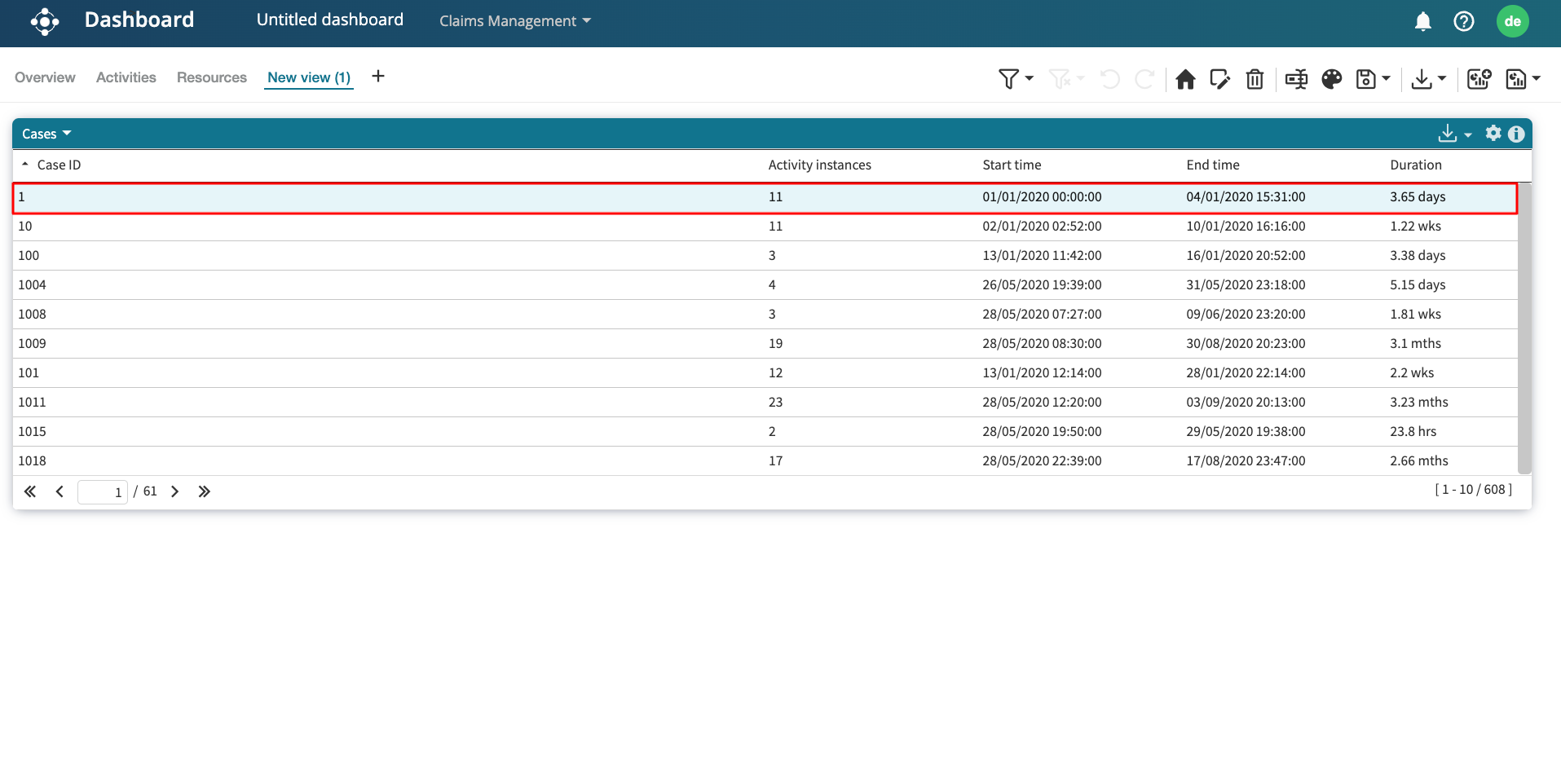
Click Apply, and the applied filter gets undone.
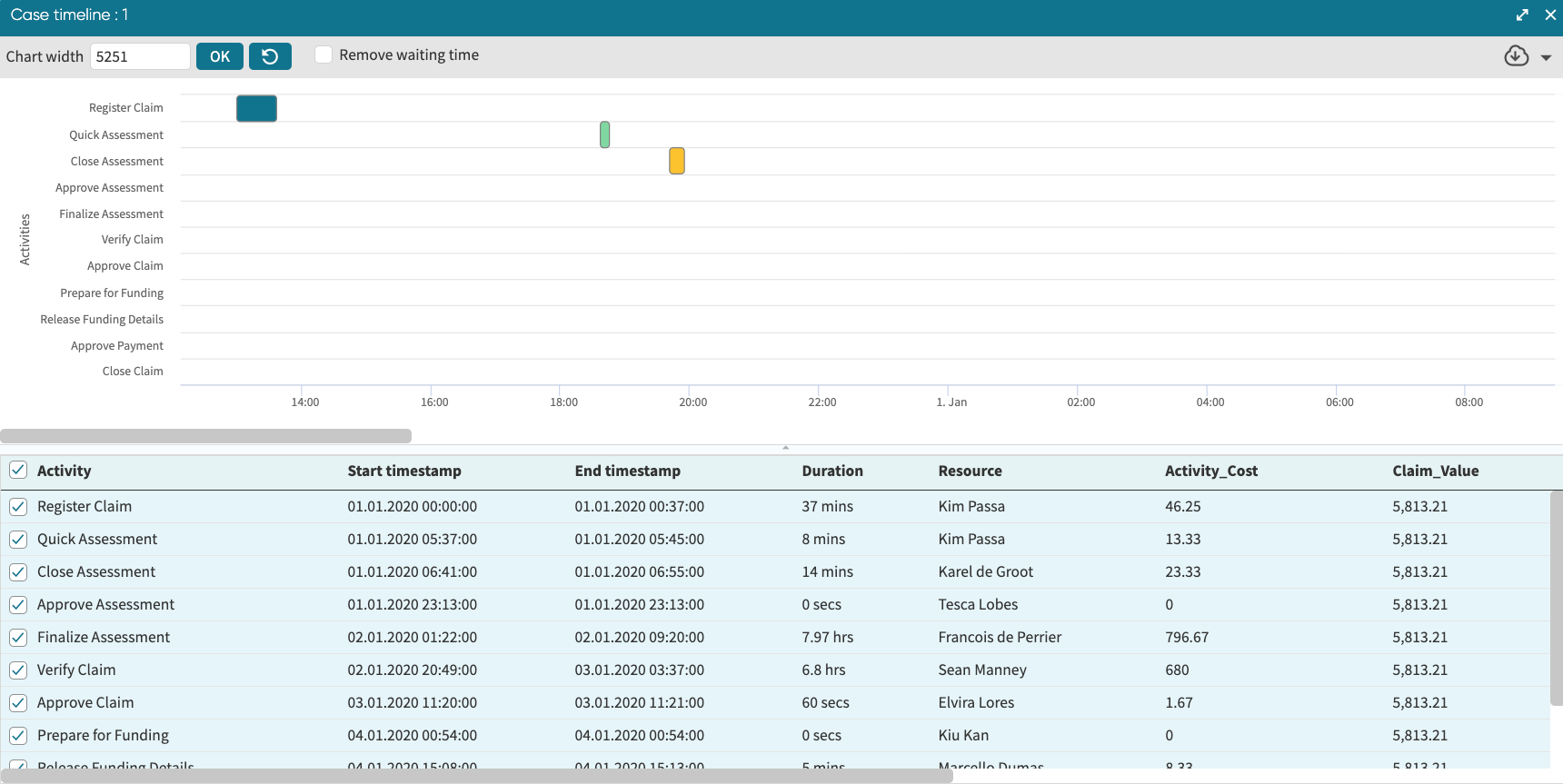
To remove all quick filters at once, click Clear all.
Note
Quick filters are designed for fast exploratory analysis. They are not saved once we close the dashboard. However, the filter state is encoded in the URL. This means we can view or share the filtered dashboard by copying the URL after applying the quick filters. Anyone with access to the dashboard can use the URL to view the filtered dashboard after authentication.
Any active quick filters are automatically cleared when we switch the dashboard to Edit mode.
Quick filters are view-only and do not appear in the Filter window. They are not included in the dashboard’s global filters.
Quick filters are propagated when navigating from a dashboard to Process Discoverer, or vice versa, to create a parent–child relationship.
Quick filters can also be accessed from Process Discoverer. To learn more, see Apply a filter.