Add a text widget
We may want to enter text within a dashboard. The new dashboards allow us to enter text and format it as we wish.
To add a text widget, click Add widget > Text.
This displays the textbox where we can enter the text and format it as desired.
We have added some sample text here.
We can particularly do the following:
Include numbered and bullet-point lists
Add images and hyperlinks.
Add number or bullet-point lists
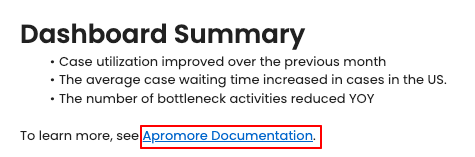
Imagine we want to summarize a monthly performance dashboard using a textual widget. This widget will clearly outline key insights, display supporting images, and link to external resources for additional context. To create such a summary in text, click Add widget > Text to add the text widget.
To add a numbered list, click the numbered list icon.
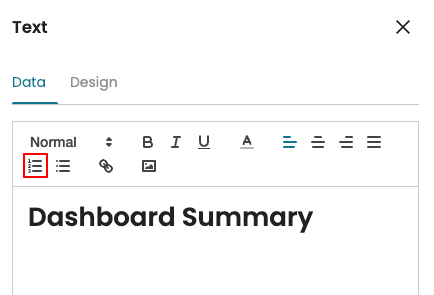
We can then enter the list.
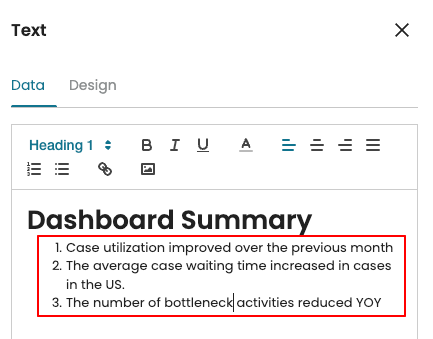
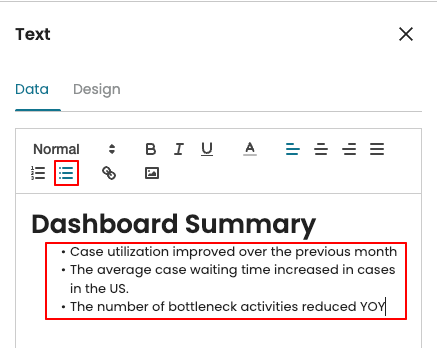
We can also use bullet points. Click the bullet list icon.
Add images
We can also add images to a text widget. To do so, click the image icon.
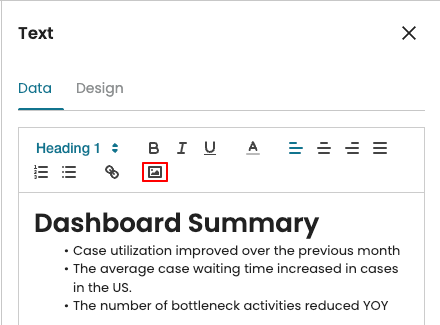
This prompts us to upload the image.
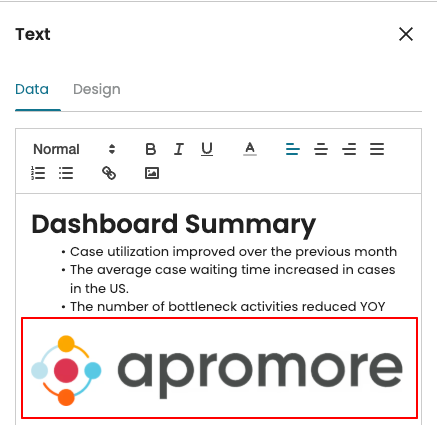
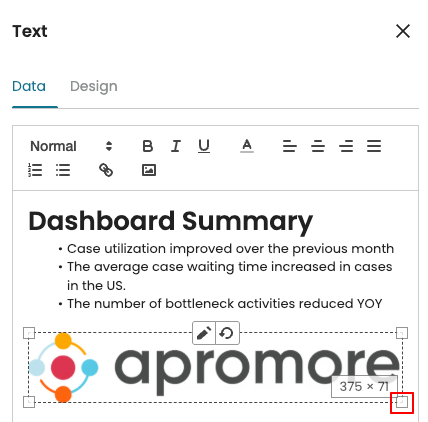
We may also resize the image. Click the image and drag any edge to resize the image.
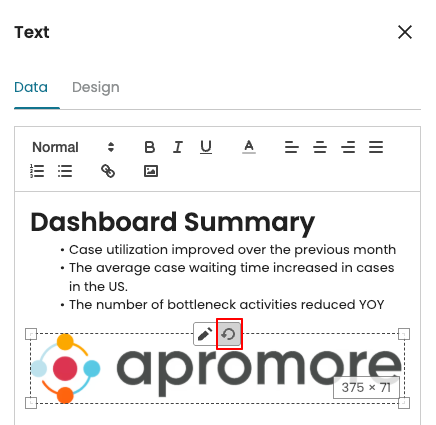
To undo the last action, click the undo icon.
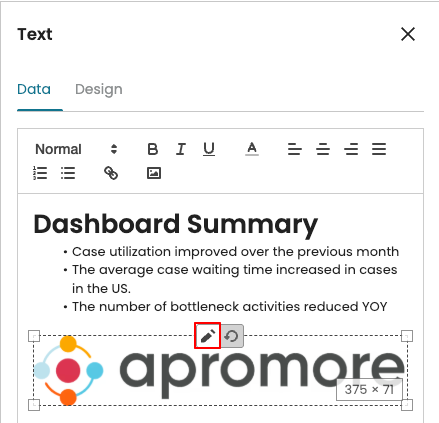
To delete an image, click the pen icon and press Backspace on the keyboard.
Add hyperlinks
We can add hyperlinks to a text in a text widget. For instance, we may want the user to navigate to an external resource. Highlight the text and click the hyperlink icon.
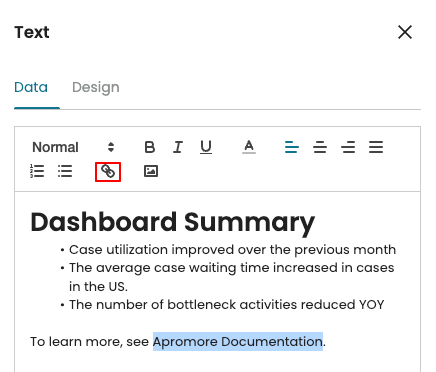
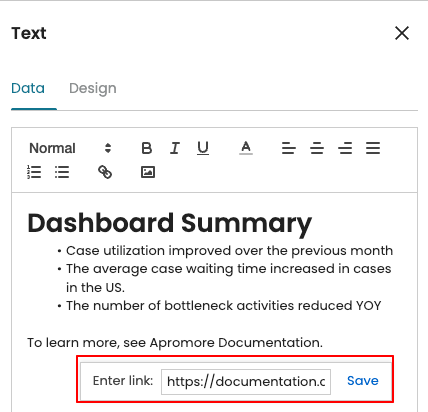
Enter the link and click Save.
When we click on the selected text, Apromore opens the inserted URL after a warning message.