Customise columns in the inventory
In the Inventory page, we typically find process views by browsing the default columns: workflow, data source, and description. However, we may also want to display and sort views by their property values. For example, if our views have a “Process Owner” property, we may want to show the owner of each view as a column and then sort the list by owner to quickly find the processes a specific person is responsible for.
We can add any property from the Property Manager as a column in the inventory page. Once added, we can sort the inventory by any of these new columns.
To add columns, click the Configure columns icon at the top of the inventory page.

Note
To configure columns in the inventory, your role needs the “Configure Inventory” permission enabled.
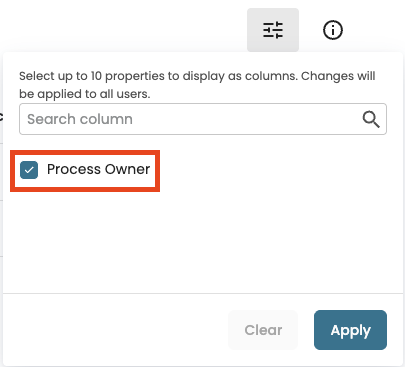
A panel will open showing all available properties. Select the properties to display as a column and click Apply.
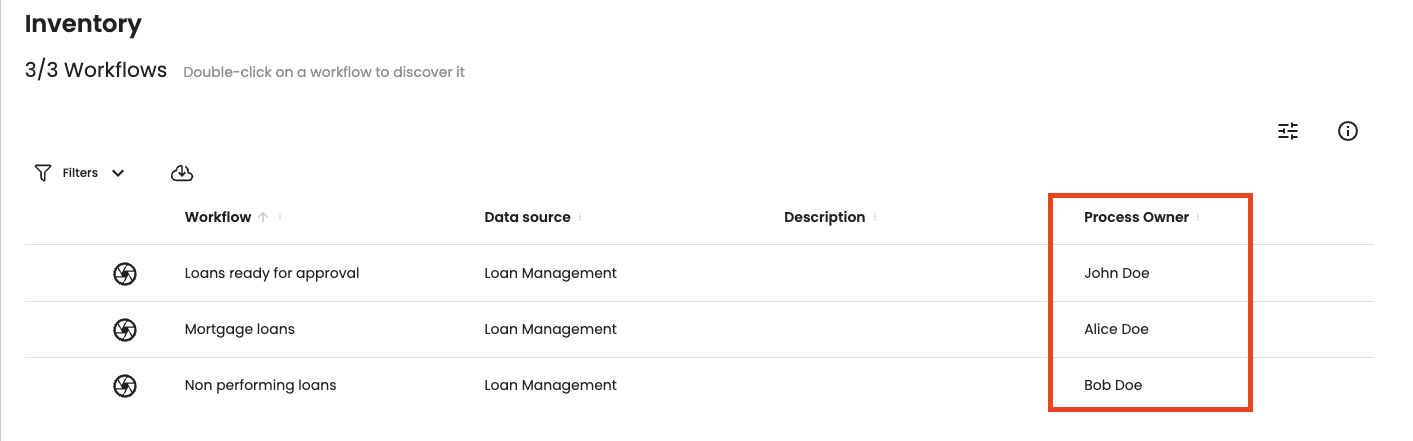
The column will appear to the right of the default ones with each view’s values.
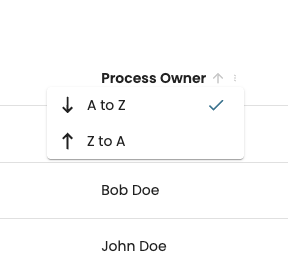
We can sort the views based on a column value. For instance, if we wish to sort by the process owners in descending order, click the Process Owner column and select A to Z.
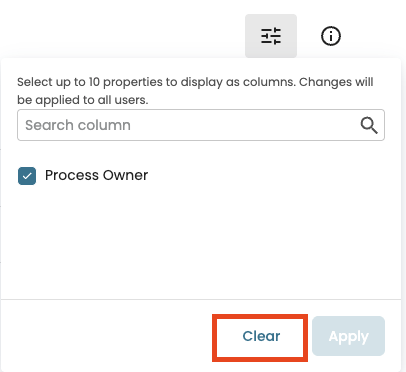
We can also remove custom columns and return to the default view by clicking on the Configure columns icon and clicking Clear.